MyTrip Builder in screenshots
A quick look at how a trip comes together in the app, from the first screen to the phone in your hand. The screenshots are from the live app, in the order you would meet them.
The planned trip in these screenshots is a demo ("Rome and Florence"). Its distances and travel times were entered by hand for illustration. The app is in public beta and changes often, so what you see can differ a little. Screenshots taken: October 25, 2026
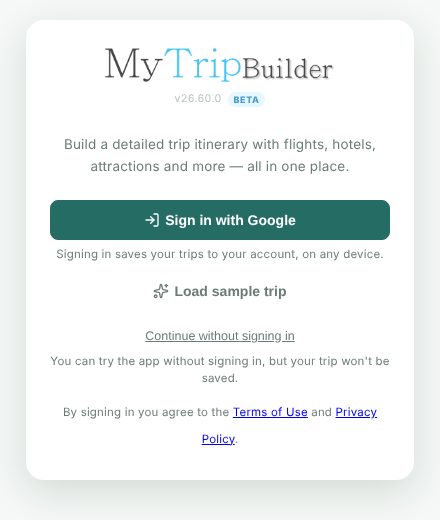
Open the app and start
Sign in with Google to keep your trips in your account, or continue without signing in to look around. A trip created without signing in is not saved, so sign in when you want to keep it.
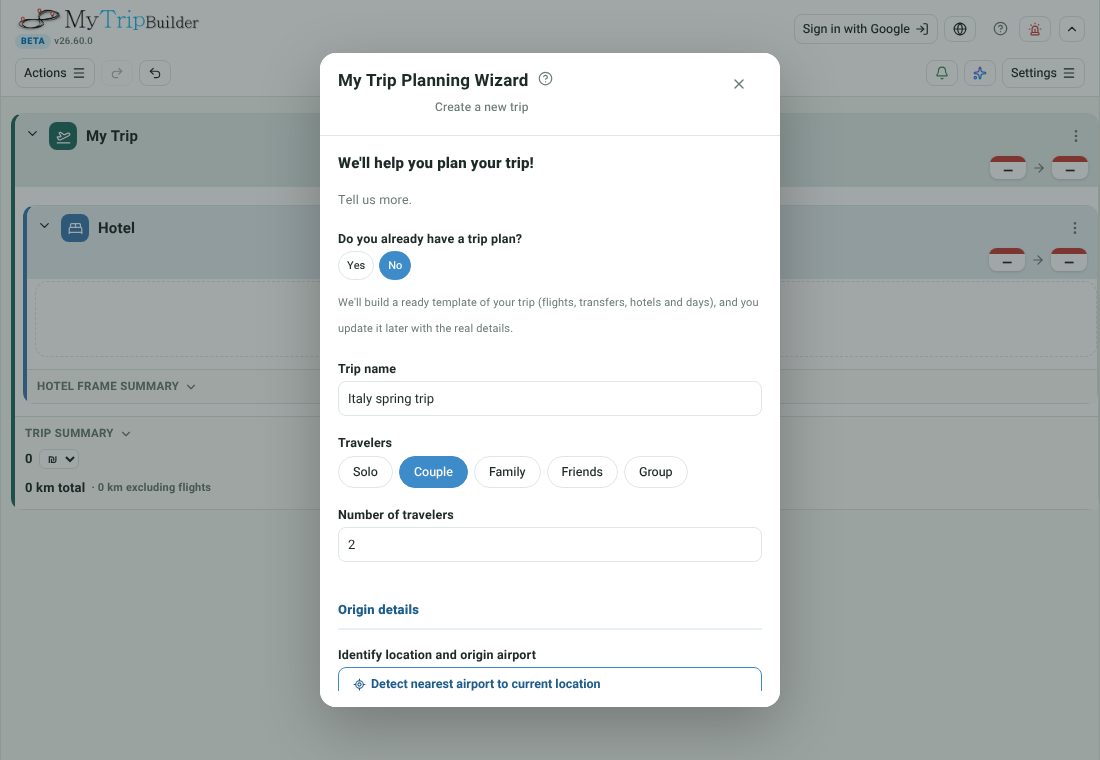
Tell the Trip Wizard about your trip
Give the trip a name, add the destinations and the dates, say who is traveling and how you get around, and choose how many places to stay. You can refine everything later.
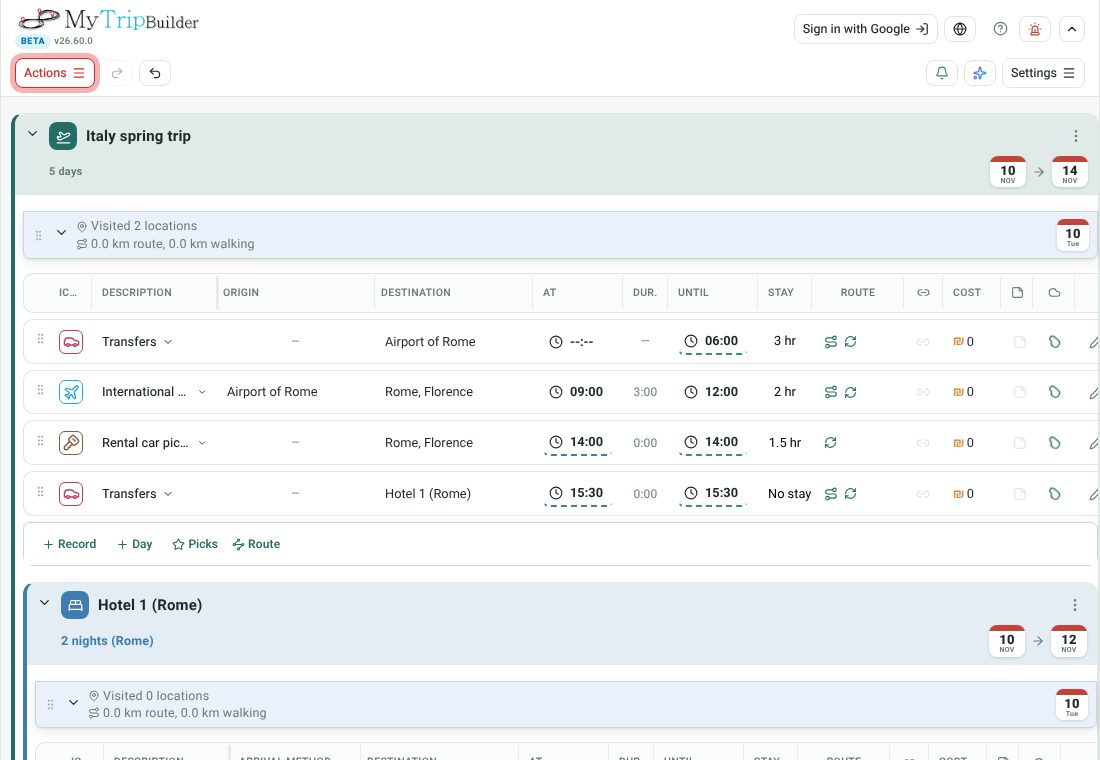
Get a ready trip template
The wizard builds a starting template: the flights, the transfers, a stay for each destination and a day for every date. It is a template, not a booking: you then update it with the real flights, hotels and places.
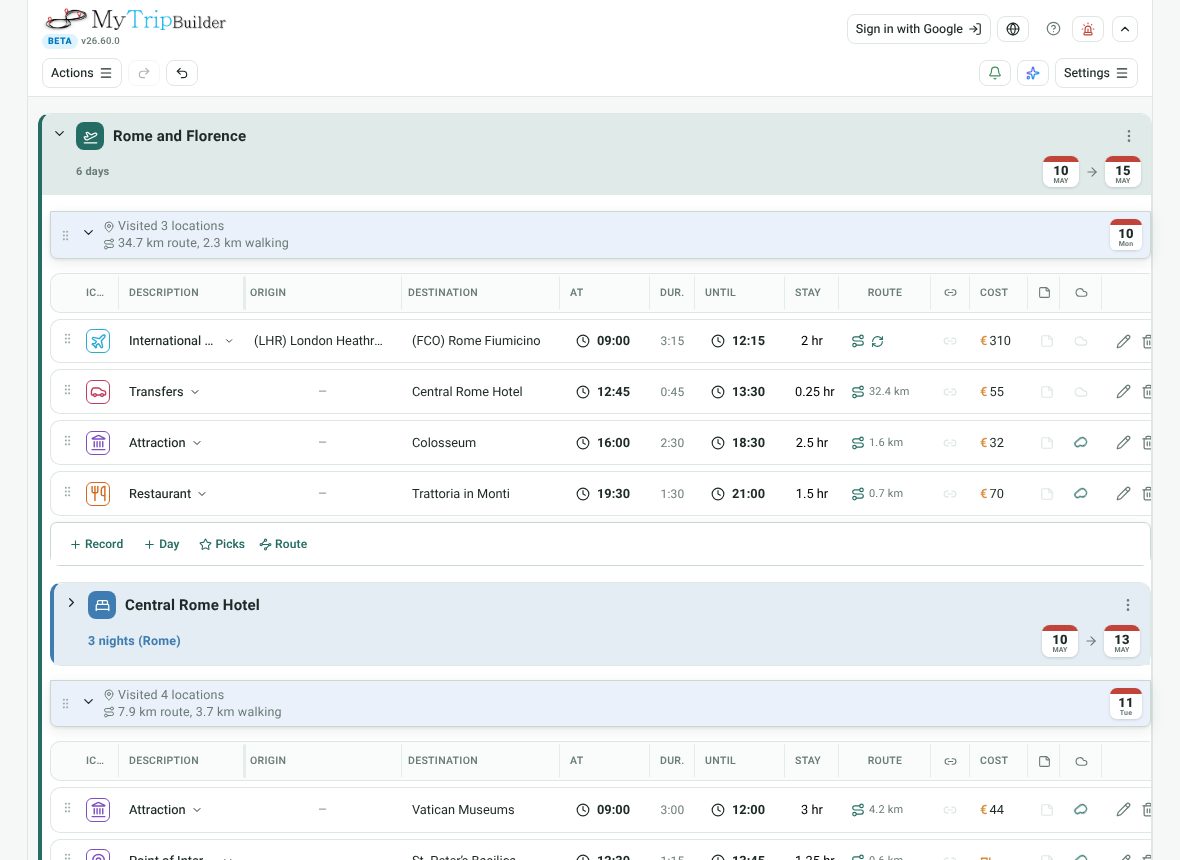
Plan every day, place by place
Each record has a place, a time, how you get there, the distance and the cost. Times follow each other automatically, so changing one record moves the rest of the day, and the days are grouped under the places you stay.
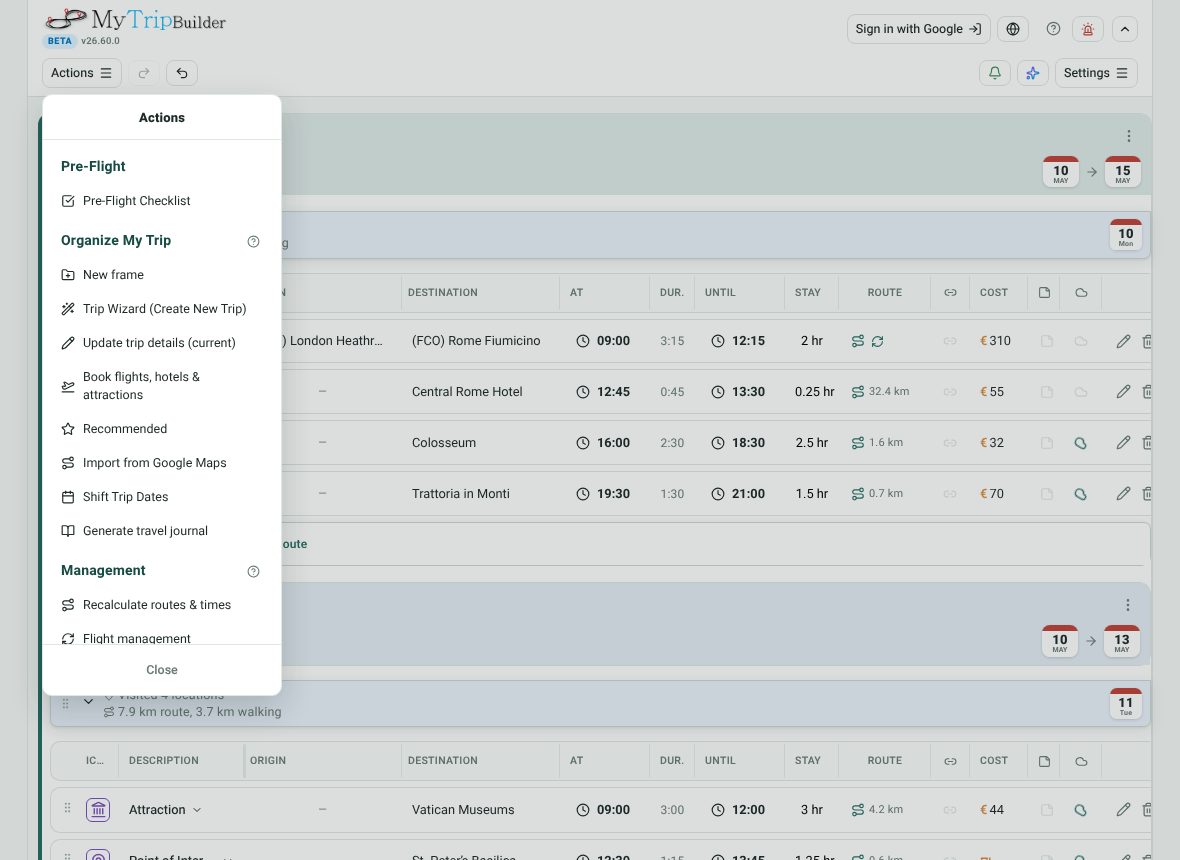
Everything else is in one menu
The Actions menu holds the rest: update the trip details, search flights and hotels, recommended places, import a route from Google Maps, shift all the dates, travel journal and more.
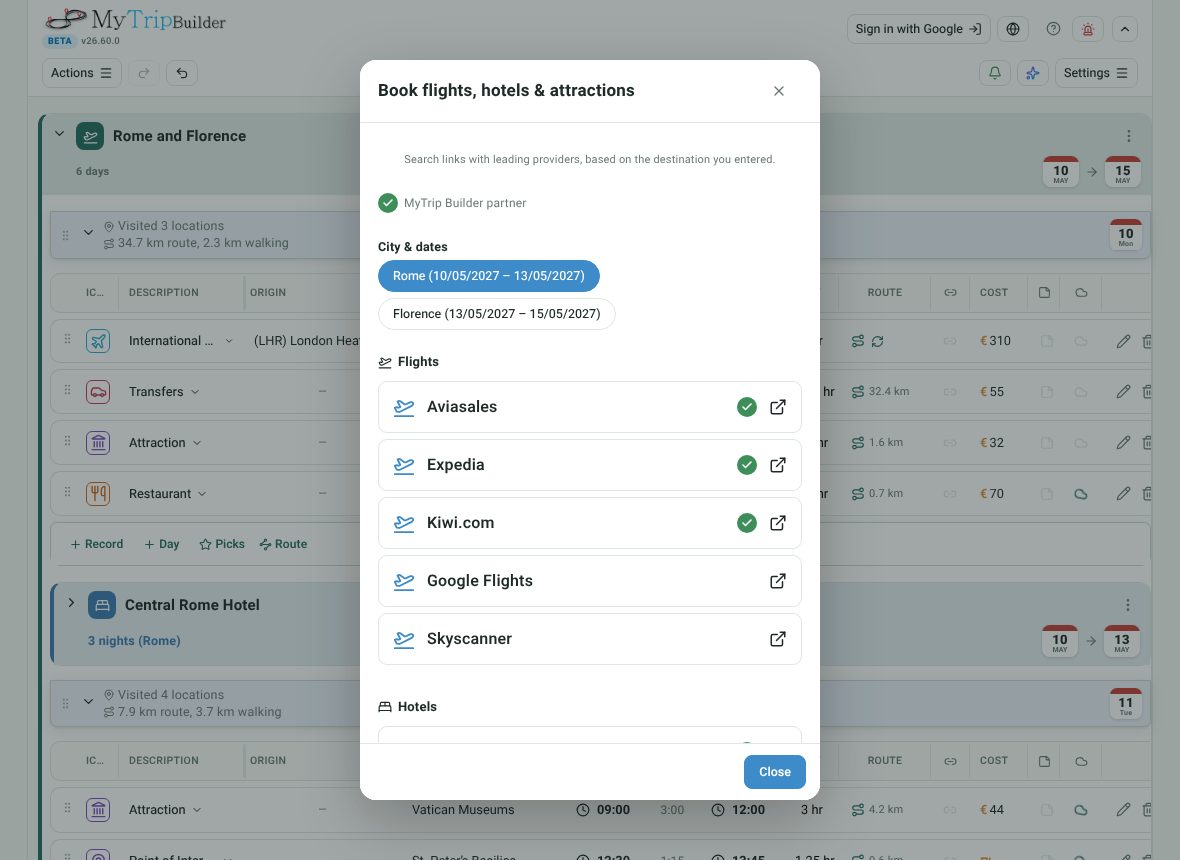
Find flights, hotels and attractions
Pick a city and dates from the trip and open search links at leading providers, ready with the destination you entered. Providers marked with a green check are partners of MyTrip Builder.
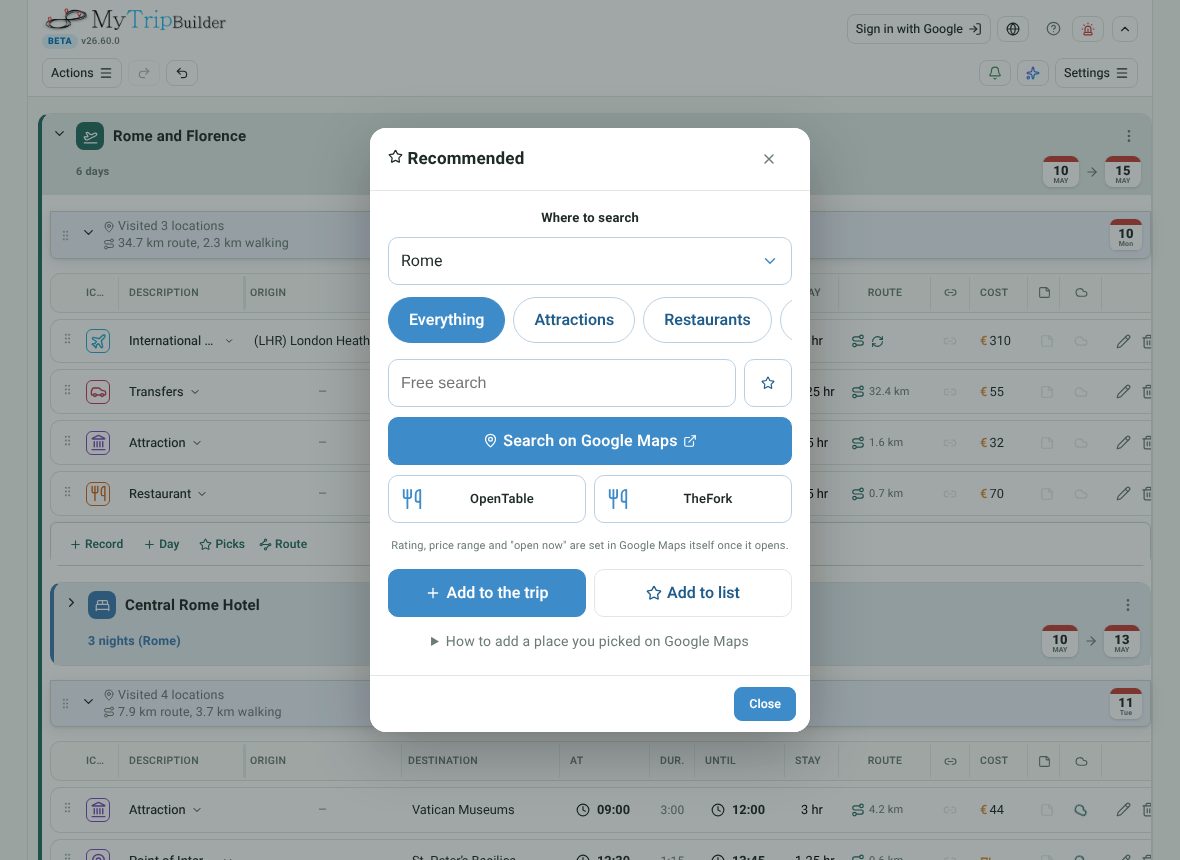
Restaurants, bars and places worth a visit
Choose an area, such as a city, the end of a day or a place already in the trip, and a category, and open a Google Maps search around it. Save a place to your list or add it straight to a day.
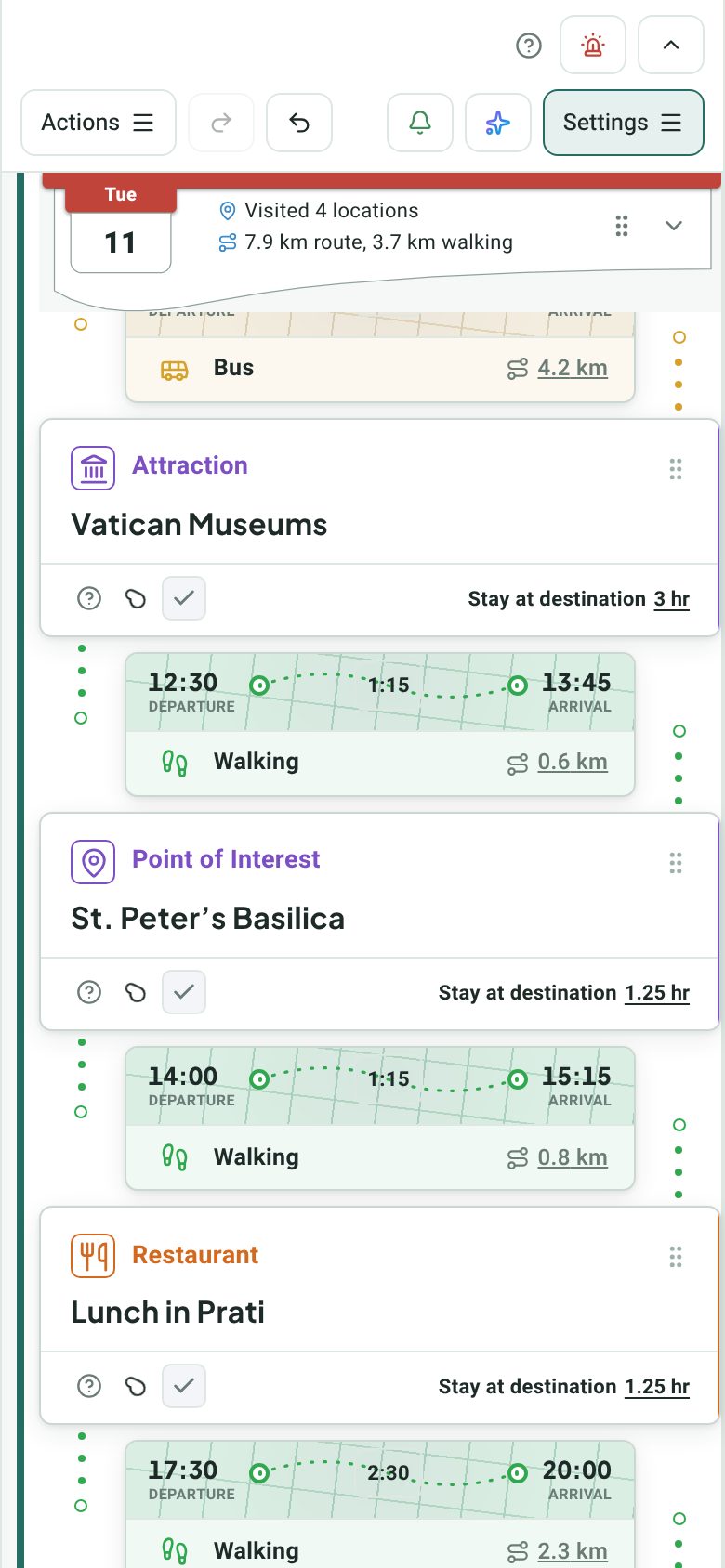
On your phone, and reminders along the way
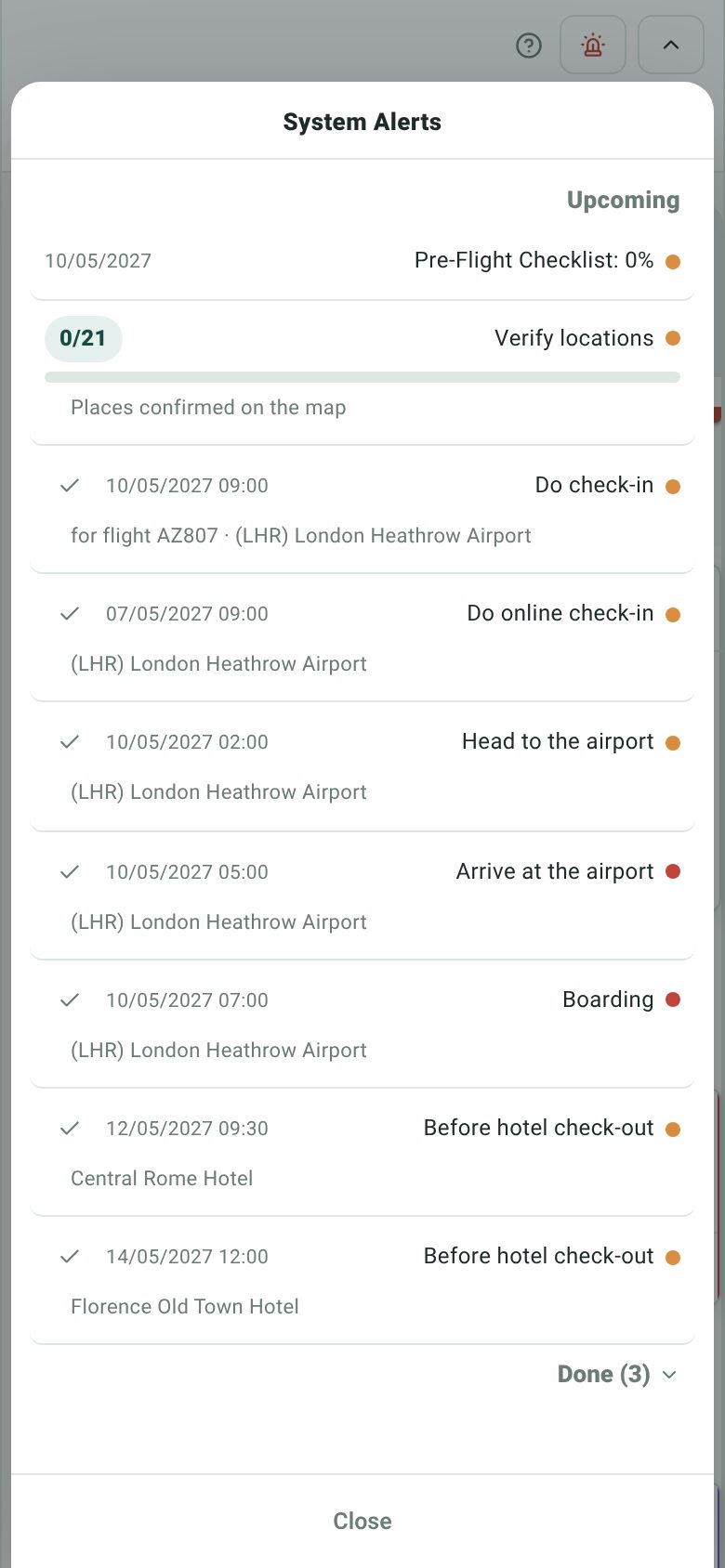
On a phone each day is a stack of cards, with the way between two places drawn between them. The alerts bell keeps the reminders (check-in, head to the airport, boarding, hotel check-out) and shows how far the planning has come.
Try it on your own trip
Open the app and let the Trip Wizard build your first template. It takes a minute.
Open the appMore: Help & Guide · Planning guides · Press kit